The controller holds the queue. Each worker joins by invitation, with fingerprint verification and your approval.
Controller
The central point for the queue, computers and reports.
Worker
Runs jobs using its own installed CST automation.
Combined mode
The controller also accepts jobs within its resource budgets.
Workers initiate outbound connections. LAN, an existing VPN or configured HTTPS access is required; the app does not reconfigure your network.
03 — 06 DISPATCH
Each job. The right computer.
CST version, runner binding, tags, resource budgets and working hours are checked together. If no computer is eligible, the job waits.
Import JSON, JSONL or structured Markdown.
Queue jobs after validation and conflict checks.
Dispatch independent jobs to ready, approved computers.
04 — 06 INTERRUPTION & RECOVERY
Connection lost. Job not duplicated.
When a worker disconnects, a job that has already started becomes “unknown” at the controller. It is not automatically sent to another computer.
Running→Unknown
The job may still be running remotely. When the connection returns, its state is reconciled with the same computer; interrupted file transfers can continue.
This is not CST solver checkpoint / resume. Manually retrying an unknown job may run it twice.
05 — 06 RESULTS & REPORTS
Different machines. Consistent reports.
Results return to the controller. JSON is the numeric source of truth; Markdown and HTML reports are generated from the same data.
JSON→Markdown HTML
A completed job does not necessarily meet its design objectives.
Execution status and design objectives are reported separately.
Missing measurements are not filled with invented values. Their absence and reason are shown. CSV / JSONL export is also supported.
06 — 06 FIRST CONNECTION
Not another solver. The bridge between.
Your existing CST installation and simulation automation stay in place. MW-SimBridge coordinates where jobs go and how results return.
Resource budgets are admission checks. They do not impose hard OS-level CPU / RAM limits unless the runner supports them.
“WHY ISN’T IT STARTING?” / A PRACTICAL GUIDE
Waiting has a reason. See what it is.
Choose a scenario to see what the app checks and what you can do. This guide does not connect to your computers.
WAITING FOR AN ELIGIBLE COMPUTER
No version match. No dispatch.
A job requiring CST 2025 is not sent to a computer with only CST 2026 installed.
What does the app do?
It keeps the job queued and explains why a computer is ineligible. A job is not marked failed simply because no suitable computer is available.
What can you do?
Prepare a computer with a compatible CST installation and verified binding. Use “Any version” only if your job genuinely supports it.
Queue → Why isn’t it starting?
ONLINE ≠ READY
Connected. Runner missing.
A reachable computer may still be missing a resource package, CST verification or a local runner binding.
What does the app do?
It lists missing requirements per computer. Automatic preparation checks the resource package, existing CST installation and binding for supported profiles.
What can you do?
Review and approve the suggestions. Define a local binding yourself for an unsupported runner. Automatic preparation does not install CST or grant approval tags on your behalf.
Configuration → This computer → Runner bindings
UNKNOWN STATE
Out of contact. Possibly still running.
If a computer disconnects after a job has started, the same job is not automatically started on another computer.
What does the app do?
It reconciles state with the same computer when it reconnects. An interrupted result transfer can resume from the last chunk; this does not restart the solver.
What can you do?
Check the computer and network first. A manual retry could run the same simulation twice. Do not assume that a solver resumes from where it stopped after a power failure.
Queue → Job details → Attempts
WAITING TO RETRY
License unavailable. A separate retry limit.
License waits do not consume normal job attempts; they are managed with a separate limit.
What does the app do?
When a license is busy, the job waits with increasing retry intervals. The app does not purchase licenses, extend entitlements or change your license server.
What can you do?
Set concurrent-job and license-wait limits to match your actual license capacity. The number of computers is not the number of concurrent solves you are licensed for.
Configuration → Settings → General
IMPORTANT LIMITATIONS
What we know. What is still unverified.
End-to-end testing with real CST and testing between computers on different networks have not yet been performed.
Test-runner results are not real simulation data.
The test report dated 25 September 2026 records 120 passing tests on Linux. This does not mean that the Windows installer or real CST workflow has been validated in the field.
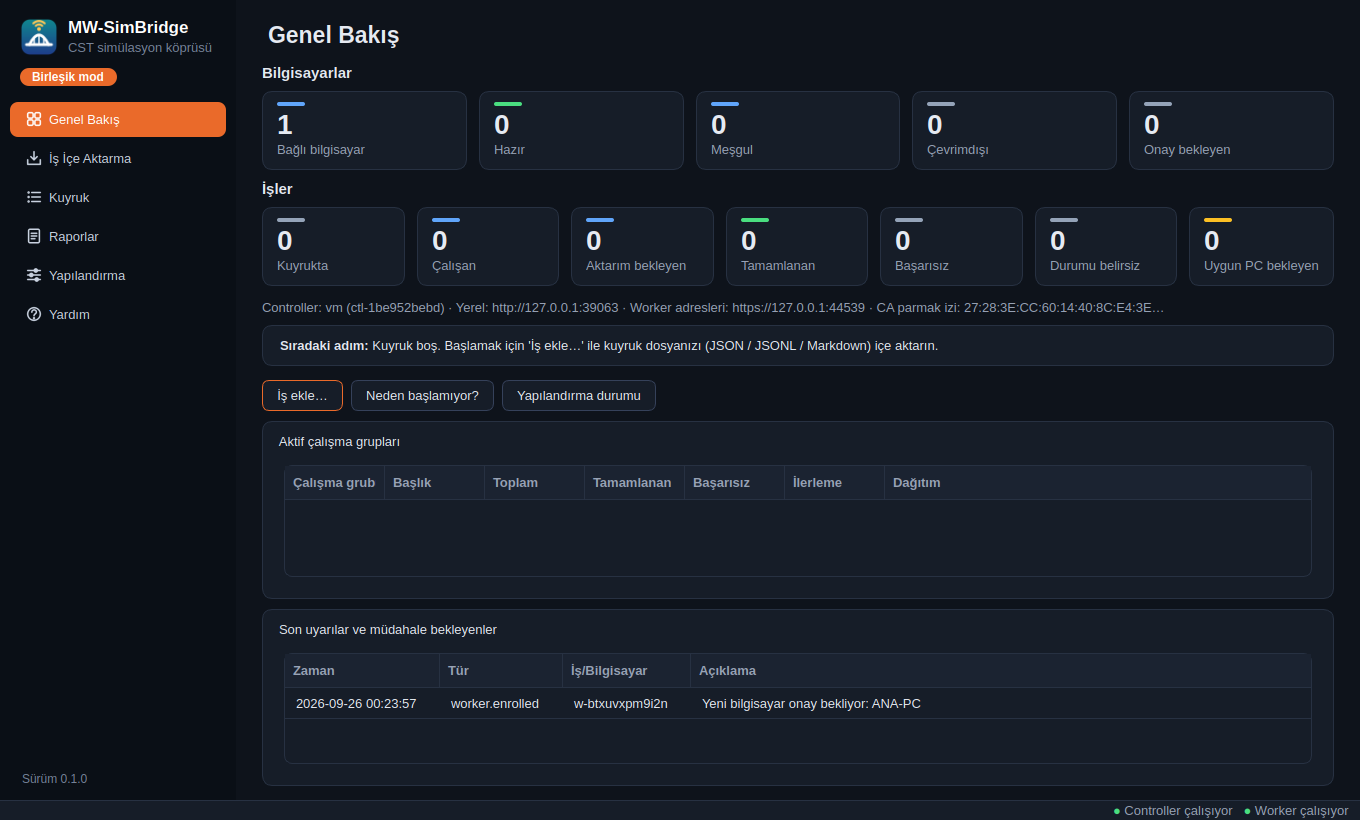
Computers, the queue and events that need attention. The image below is an actual application screenshot (Turkish UI).
MW-SimBridge / Overview / 0.1.0View full size ↗
A
“Why isn’t it starting?”
See why a job cannot start on each computer. Review suggestions for missing resources, versions, tags or bindings; apply changes with your approval.
B
Automatic preparation
Prepares resource packages, the installed CST version and supported runner bindings. It does not install CST or change license or network-security settings.
C
Approved connections
Single-use invitations, certificate-fingerprint checks and a separate identity for each computer. Workers receive jobs only after controller approval.
CONNECTS TO YOUR EXISTING AUTOMATION
Use the interface. Connect your scripts.
The controller’s local REST API and the mw-simbridge command line can fit into your existing job-generation and reporting workflow.
Job file
JSON / JSONL / fenced Markdown code blocks
Local API
127.0.0.1:8765/api/v1
Authorization
Default agent key: read, submit and control jobs. No administrator permissions.
Download and extract the published ZIP on the controller. It installs for your user account; Python and administrator privileges are not required.
Get the file only from the project source. Verify it against SHA256SUMS when provided with the release. Do not blindly bypass Windows security warnings.
02
Choose the controller’s role.
Choose Controller for management only, or Combined mode if this computer will run jobs too. Configure network access and prepare the connection profile.
03
Pair your first worker.
Choose Worker mode on the other computer. Join with a single-use invitation file or code, verify the fingerprint and approve it on the controller.
04
Check readiness and a small job.
Verify the CST version, resource package and runner binding. Run the self-test, remembering it is not a real CST test. Then validate your setup with a small simulation you know.
Check off the steps you have prepared. This list is stored only in this browser; it does not measure your computer’s actual readiness.
0 / 5 steps checked
A FEW CLEAR ANSWERS
Before you install.
Do all computers need to be on the same network?
No, but the worker needs an authorized, secure route to the controller. An existing VPN / Tailscale or configured HTTPS connection can be used. The app does not install a VPN or modify routers or firewalls. Cross-network end-to-end testing has not yet been performed.
Is a CST license included?
No. Each worker needs a compatible CST installation, a valid license and existing simulation automation. This is not a solver or license manager; adding computers does not grant additional license rights.
Do jobs stop when I close the interface?
Closing the interface does not stop background work. A network outage is also different from a shutdown: a power failure does not automatically resume a CST solve from where it stopped.
Where are the source and release notes?
The GitHub repository is public, but no open-source license has been selected; all rights are reserved.
The changelog
and
design decisions
are available in the repository.